
How to Delete Phone from Honda CR-V 2023: Step-by-Step Guide
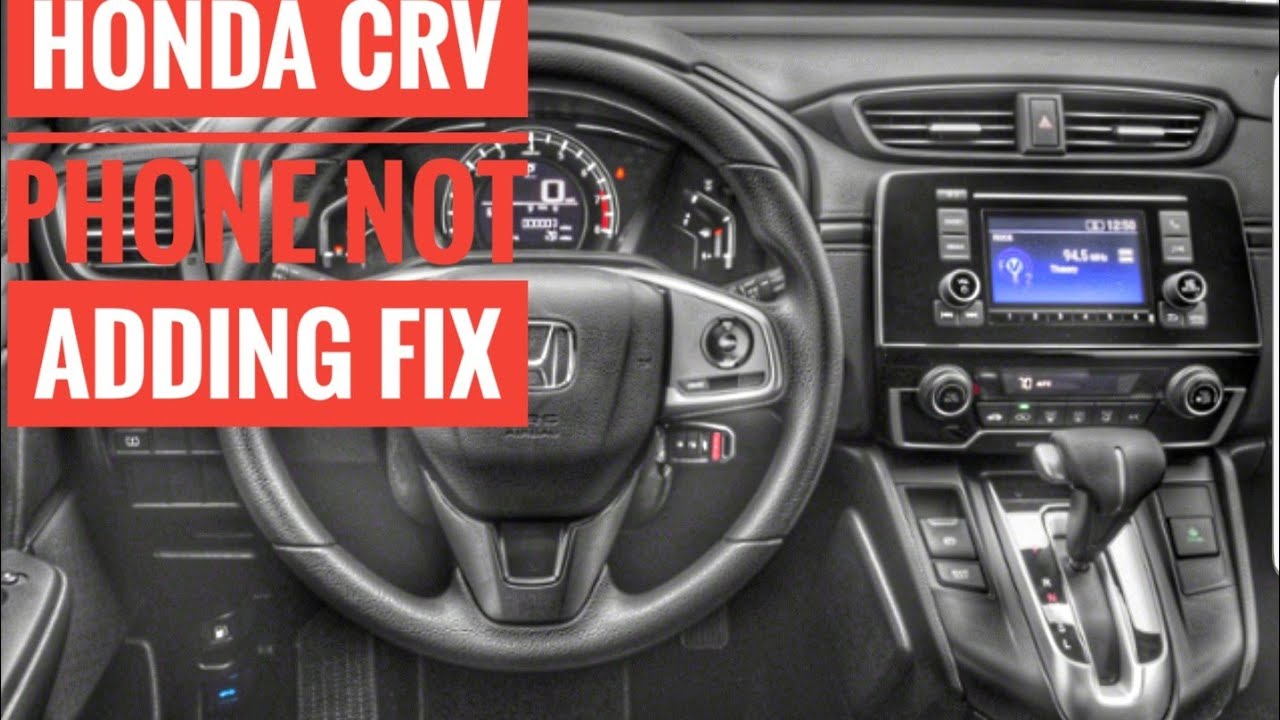
- Understanding the Infotainment System in the 2023 Honda CR-V
- Step-by-Step Guide: How to Delete a Phone from Your 2023 Honda CR-V
- Troubleshooting Common Issues When Deleting a Phone from Honda CR-V
- Why You Might Want to Delete a Phone from Your Honda CR-V
- FAQs: Deleting Phones from the 2023 Honda CR-V Infotainment System
Understanding the Infotainment System in the 2023 Honda CR-V
The 2023 Honda CR-V features an advanced infotainment system designed to enhance your driving experience through seamless connectivity and user-friendly interfaces. At the heart of this system is a large touchscreen display that offers intuitive controls and easy access to a wide range of features. With its responsive layout, the infotainment system allows drivers to quickly navigate through various options without distraction, ensuring a safer driving environment.
One of the standout features of the 2023 CR-Vs infotainment system is its compatibility with both Apple CarPlay and Android Auto. This integration allows users to connect their smartphones effortlessly, giving them access to navigation apps, music libraries, and other essential functions directly from the vehicles display. To connect your device, simply follow these steps:
- Enable Bluetooth on your smartphone.
- Select the appropriate connection option on the infotainment screen.
- Follow the on-screen prompts to pair your device.
In addition to smartphone integration, the infotainment system in the 2023 Honda CR-V includes features such as voice recognition, Bluetooth hands-free calling, and multiple USB ports for charging and media access. These functionalities ensure that drivers remain connected without compromising safety. The system also supports various audio sources, including AM/FM radio, satellite radio, and streaming services, catering to diverse preferences.
For those who prioritize safety, the infotainment system incorporates advanced features like navigation with real-time traffic updates and alerts. This helps drivers make informed decisions on the road and avoid congested routes. Furthermore, the system is designed to receive over-the-air updates, ensuring that users benefit from the latest enhancements and features without needing to visit a dealership. Overall, the infotainment system in the 2023 Honda CR-V stands out as a robust and comprehensive solution for modern drivers.
Step-by-Step Guide: How to Delete a Phone from Your 2023 Honda CR-V
If you need to remove a phone from your 2023 Honda CR-Vs Bluetooth system, follow this straightforward step-by-step guide to ensure a smooth process. Whether you are replacing an old device or simply want to declutter your vehicles Bluetooth settings, deleting a phone is easy.
Step 1: Start Your Vehicle
To begin the process, ensure your Honda CR-V is in the "On" position without starting the engine. This will activate the vehicles multimedia system, allowing you to access the Bluetooth settings.
Step 2: Access the Bluetooth Menu
Navigate to the multimedia display screen. Tap on the "Settings" icon, usually represented by a gear symbol. From there, select "Bluetooth" to view the list of connected devices. This menu will display all phones currently paired with your vehicle.
Step 3: Select the Phone to Delete
In the Bluetooth menu, locate the phone you wish to delete. Once found, tap on the device name to access its options. Look for the "Delete" or "Forget Device" option. Confirm your choice when prompted, ensuring that you want to remove the phone from the system.
Step 4: Final Confirmation
After confirming the deletion, the system will remove the phone from your Honda CR-Vs Bluetooth settings. You may want to repeat these steps if you have multiple devices to delete. Make sure to check that the phone is no longer listed in the Bluetooth menu to ensure it has been successfully removed.
Troubleshooting Common Issues When Deleting a Phone from Honda CR-V
When trying to delete a phone from your Honda CR-Vs Bluetooth system, you may encounter several common issues. Understanding these challenges can help you resolve them quickly and effectively. Here are some frequent problems and their solutions.
Phone Not Recognized
One of the most common issues is that the phone may not be recognized by the Honda CR-Vs system. This can occur if the phone is not properly paired or if the Bluetooth settings are not correctly configured. To troubleshoot this issue, follow these steps:
- Ensure Bluetooth is Enabled: Check that Bluetooth is turned on for both the Honda CR-V and your phone.
- Reboot Your Phone: Sometimes, a simple restart can resolve connectivity issues.
- Delete Other Paired Devices: If your phone is paired with too many devices, try deleting some to free up space.
Unable to Delete Phone
If you are unable to delete the phone from the Honda CR-V, this may be due to a software glitch or user error. To effectively remove the phone, consider the following steps:
- Check the Menu Options: Navigate through the Bluetooth settings to ensure you are selecting the correct option to delete the device.
- Update the Software: Make sure your Honda CR-V’s infotainment system is running the latest software version, as updates often fix bugs.
- Reset the System: If all else fails, performing a factory reset of the infotainment system can resolve persistent issues.
Persistent Connection Issues
Sometimes, even after attempting to delete a phone, connection issues may persist. If your Honda CR-V continues to show the phone as connected, try these troubleshooting tips:
- Clear Bluetooth Cache: On your phone, clear the Bluetooth cache to ensure there are no residual connections affecting the deletion.
- Disconnect Before Deleting: Make sure the phone is disconnected from the vehicle before attempting to remove it from the list of paired devices.
- Consult the Owners Manual: Refer to the vehicle’s owner manual for specific instructions related to your model year.
Why You Might Want to Delete a Phone from Your Honda CR-V
Deleting a phone from your Honda CR-Vs Bluetooth system can be a practical decision for various reasons. One of the primary motivations is to ensure security and privacy. If youve recently sold your vehicle or allowed someone else to use it, removing their phone prevents unauthorized access to your contacts, messages, and call history. This is especially important if sensitive information is stored on your device or if you frequently communicate with confidential contacts.
Another reason to delete a phone is to resolve connectivity issues. Sometimes, multiple devices paired with your Honda CR-V can lead to confusion and connectivity problems. If your vehicle struggles to connect to your current phone or frequently drops calls, removing old or unused devices can streamline the connection process, ensuring a smoother and more reliable experience.
Additionally, if you have upgraded to a new phone, it’s a good idea to remove the old one. This helps to maintain an organized Bluetooth system, preventing the clutter of unused devices. By keeping only the relevant phones connected, you can enhance the functionality of your vehicles infotainment system and make it easier to switch between devices as needed.
Lastly, if you’re experiencing performance issues with the infotainment system, deleting unnecessary phones may help improve overall responsiveness. A fresh start by removing devices that are no longer in use can clear up potential software glitches and enhance the user experience, making it easier to access navigation, music, and other features seamlessly.
FAQs: Deleting Phones from the 2023 Honda CR-V Infotainment System
How do I delete a phone from the infotainment system?
To delete a phone from the 2023 Honda CR-Vs infotainment system, start by accessing the main menu on the display screen. Navigate to the Settings option, then select Bluetooth. Here, you will see a list of paired devices. Find the phone you wish to remove, tap on it, and select the Delete or Forget option. Confirm your choice, and the device will be removed from the system.
What should I do if I cant find the Bluetooth settings?
If youre having trouble locating the Bluetooth settings, ensure that your infotainment system is powered on and fully operational. Sometimes, the settings may be hidden within a submenu. Try the following steps:
- Access the Home screen.
- Look for the Phone icon or Settings gear.
- Select Bluetooth to view connected devices.
If the problem persists, refer to your owners manual for more detailed instructions or consider resetting the infotainment system.
Will deleting a phone affect my saved settings?
Deleting a phone from the infotainment system will not affect other saved settings or preferences. However, it will remove all associated contacts, call history, and paired settings related to that specific device. If you wish to reconnect the phone in the future, you will need to pair it again, which includes entering a passcode or confirming a pairing request.
Can I delete multiple phones at once?
Unfortunately, the 2023 Honda CR-V infotainment system does not support deleting multiple phones simultaneously. Each device must be removed individually through the Bluetooth settings menu. If you have several devices paired and wish to streamline your connections, take the time to delete each one as needed.
Did you like this content How to Delete Phone from Honda CR-V 2023: Step-by-Step Guide See more here General Mechanics.

Leave a Reply